
Sage Catalyst VitalSource User Guide
This quick guide will give you an overview of how to use the VitalSource Bookshelf platform to make the most of your Sage Catalyst collection.
Step 1: Login
If your Library has subscribed to the Sage Catalyst collection, you have unlimited access to over hundreds of premium Sage textbooks via VitalSource Bookshelf.
Go to the VitalSource Bookshelf login page and log in with your institutional account details.
Step 2: Find your titles
Go to the Explore tab to see all the titles available to you. The books are categorized by recommended titles, recently added, and by discipline.
Scroll down to see the discipline categories. The collection spans across 17 disciplines, and you’ll see here the top ones, including Business & Management, Research Methods, Psychology, Communication & Media Studies, Criminology, Politics & International Relations, Sociology, and Other Social Sciences.

If you’re looking to find a specific book, use the search function. Besides searching for a specific title, you can also search for content in the book or your notes.
When you find the title, you’re looking for, you can view the book details or open the book right away. You can also search within the book from this page.
When you “borrow” a book from the Explore page, it will add it to your personal library, so you’ll see all the titles you’re currently using in one place. Go to the Library page to find these titles.
Step 3: Navigating the eReader
Table of Contents
Once you open the book, you’ll see a table of contents, which you can use to navigate within the book. Click on the ellipses to get citations, copy the page URL, or read offline.

Click on the “table of contents” icon to hide the table of contents and maximize your text display.
Citations
Citations are available in 4 different formats, and you can copy them directly from here.

Offline Reading
For offline reading, download the Bookshelf app by clicking on the ellipsis at the upper right-hand corner of the page and selecting Download app. Log in instantly by scanning the QR code on the next page or follow instructions to download the app in alternate ways. Offline reading is unlimited and available on any device through the app.
Navigating
To go to a different page of the book, scroll down, use the toggle at the bottom of the page, or navigate using the arrows. Alternatively, type in the page number.

Bookmark your pages
Next to the bottom navigation, you can bookmark pages by clicking on the bookmark icon. These will be in your workbook.

Study Tools
All titles come with a full suite of study tools that you can find in the top right-hand corner. Here you can search within the book, set your reader preferences, and access your personal workbook.
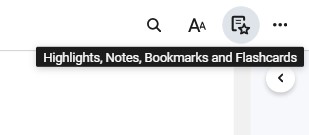
Click on the ellipses next to your workbook to listen to the book with the read-aloud functionality, print pages, give feedback, and go to your account.

To create annotations, simply select a part of the text, and choose an action. Highlight the text, add a note, copy, create a flashcard, or read aloud from a given location.

Workbook
This is your own personal workbook, where you can see all your annotations, bookmarks, and flashcards you’ve created.
Step 4: Accessibility
Navigate to “Reader Preferences” to change the display, including text size, font, margins, and line height. You can also switch between day/night/sepia and cyan mode.
Still in the “Reader Preferences” go to highlighters to add your own highlight colours. You can also name these, and either keep them private or make them public. Share your highlighters with others and choose whose highlights to follow.

Support
Navigate to the “help” button in to access the support pages to learn more about how to use the platform.
